Recruiter
Using the Chrome Extension
Install and use the Merato Chrome extension to source candidates directly from LinkedIn.
Installation
1
Install the extension
Download the Merato Chrome extension from the Chrome Web Store (or install from the provided .crx file during beta).
2
Generate an API token
Go to Settings → API Tokens in your Merato dashboard and generate a new token. Copy the token - it will only be shown once.
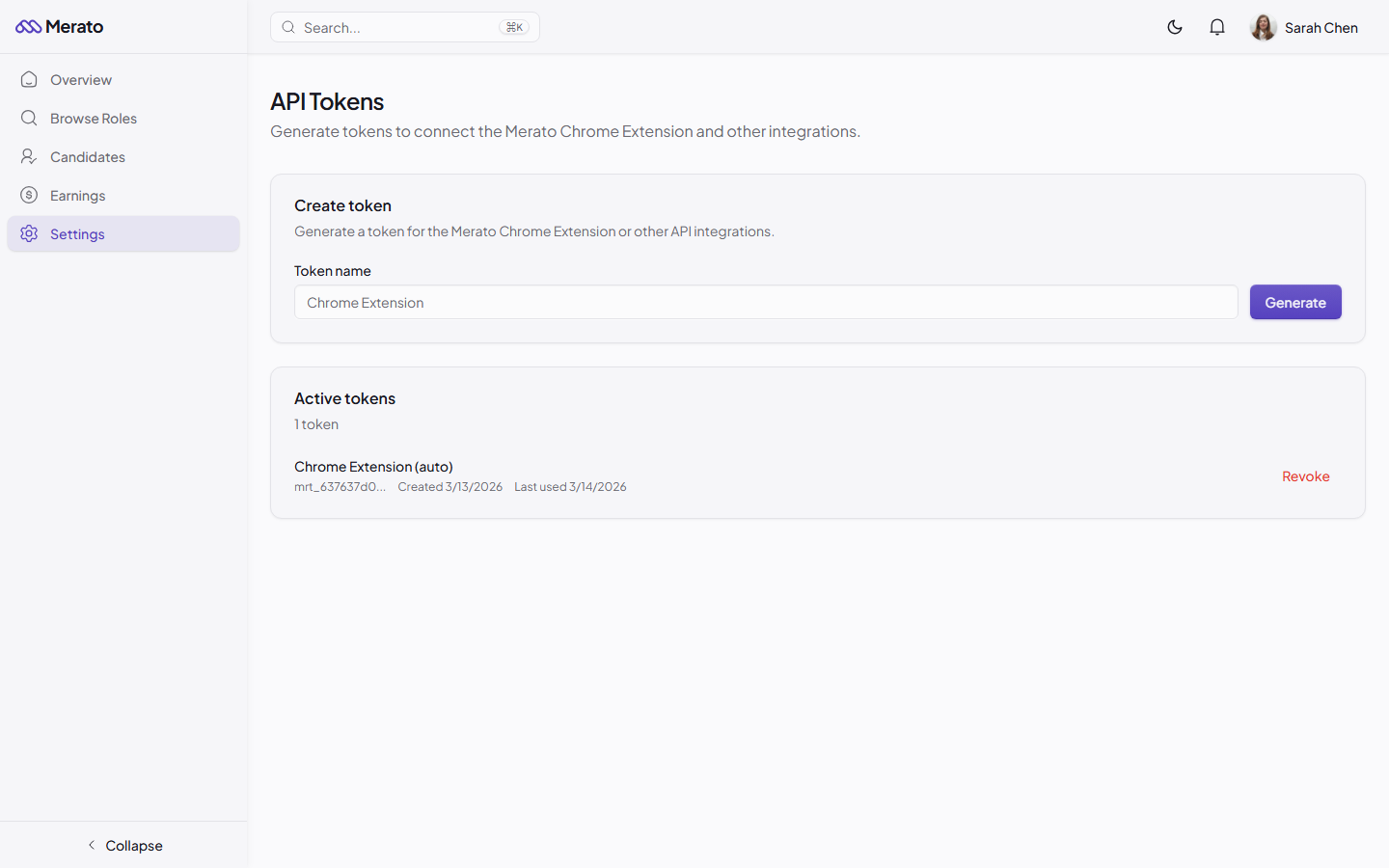
API Tokens settings page showing token generation interface with name, expiration, and scope fields - Screenshot coming soon
3
Connect the extension
Click the Merato icon in your browser toolbar, paste your API token, and click Connect. The extension is now linked to your account.
Extension Features
- Save profiles - Save LinkedIn profiles to your Merato CRM with one click.
- Duplicate detection - Instantly see if a candidate has already been submitted to a role.
- Quick submit - Submit a LinkedIn profile directly to a role without leaving the browser.
- Contact tracking - Track when you've reached out to candidates, with automatic 10-day cooldown reset.
- Quality check - AI-powered quality assessment of candidate-role fit before submitting.
Troubleshooting
Token expiration
API tokens expire after the period you set during generation. If the extension stops working, generate a new token in Settings → API Tokens and reconnect.
If the extension can't connect, check that your API token is valid, your account is in good standing, and you have an active internet connection. Clear the extension data and re-authenticate if issues persist.
Was this helpful?