General
Navigating the Dashboard
Learn the layout of your Merato dashboard, including the sidebar, stat cards, and key sections.
Dashboard Layout
Your Merato dashboard is organized into a sidebar navigation on the left and a content area on the right. The sidebar provides quick access to all major sections, and can be collapsed to icon-only mode for more screen space.
- Sidebar - Navigation links to all dashboard sections, collapsible on desktop.
- Stat cards - Key metrics displayed at the top of each page (e.g., active roles, total submissions, earnings).
- Content area - Tables, pipelines, forms, and detail views depending on the page.
- Notification bell - Real-time alerts for candidate updates, messages, and earnings.
Dashboard at a Glance
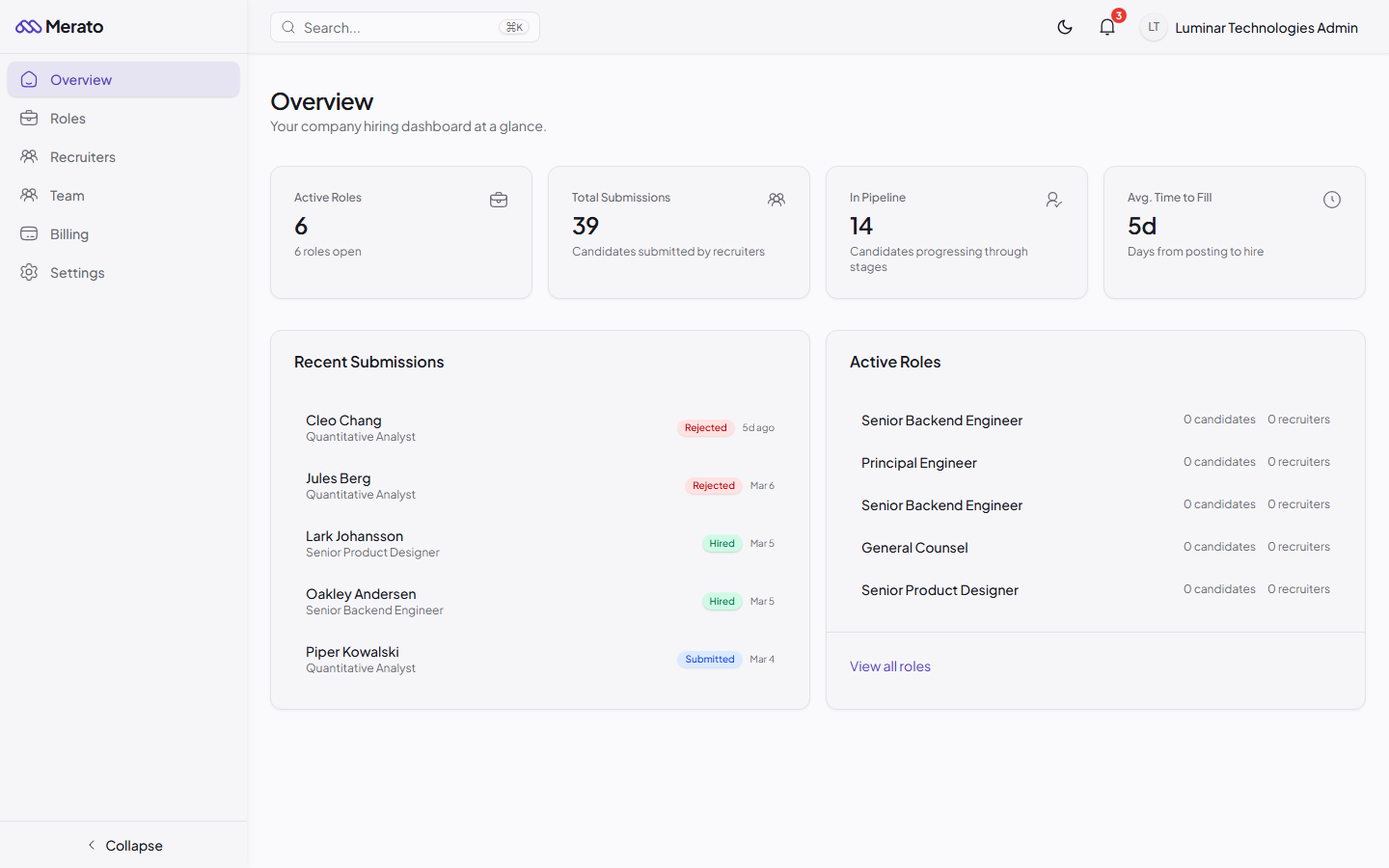
Merato dashboard overview showing sidebar navigation, stat cards, and recent activity table - Screenshot coming soon
Company Dashboard Sections
- Overview - Summary stats and recent activity.
- Roles - Create, edit, and manage your job listings.
- Recruiters - View recruiters working on your roles.
- Billing - Payment methods, invoices, and transaction history.
- Settings - Company profile and notification preferences.
Recruiter Dashboard Sections
- Overview - Submission stats, active roles, and earnings summary.
- Roles - Browse available roles and manage your active ones.
- Candidates - Your personal CRM for managing sourced candidates.
- Earnings - Track bounties, payouts, and payment history.
- Settings - Profile, Stripe Connect, and API tokens for the Chrome extension.
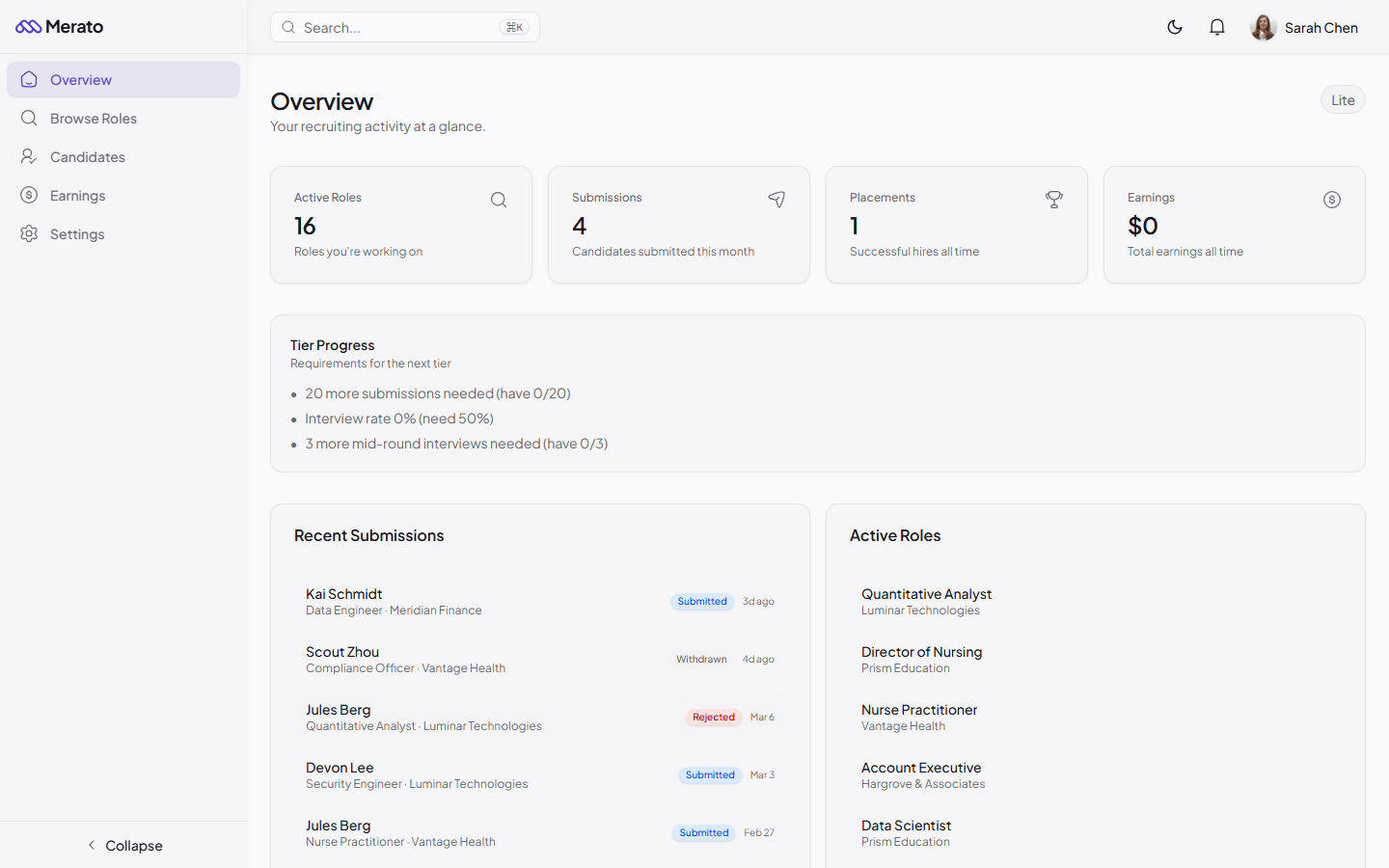
Recruiter dashboard showing Active Roles, Submissions, Placements, and Earnings stat cards with tier progress and recent activity - Screenshot coming soon
Was this helpful?